
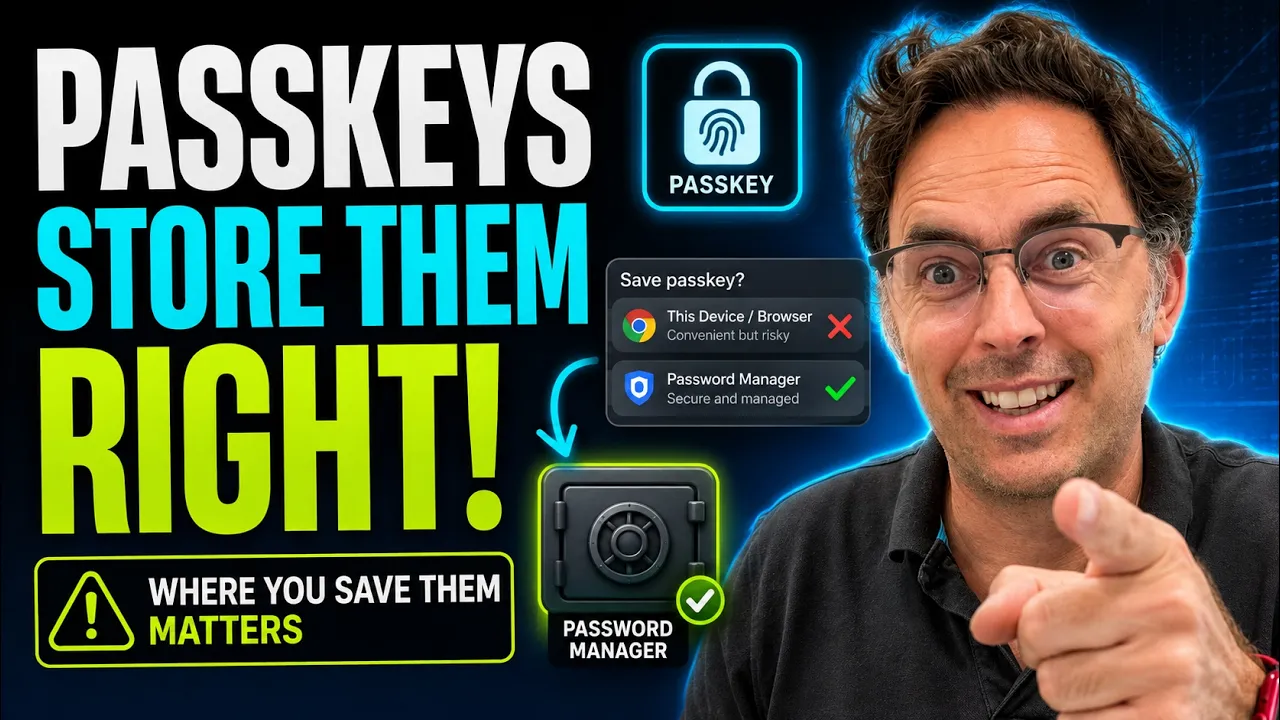
Passkeys are starting to appear everywhere, and most people are dealing with them in one of two ways. They either skip past the prompt because they do not really understand what it is, or they create one quickly without checking where it is being saved.
That second one is where small businesses need to be careful. Passkeys are a good step forward, but they still need to be managed properly. If your team starts saving business passkeys randomly into browsers, personal devices, or default computer prompts, you may solve one security problem while quietly creating an access problem for later.
The goal is not just to make logging in smoother. The goal is to make logging in safer without making the business dependent on one person, one laptop, or one browser profile that nobody can recover when something goes wrong.
What a Passkey Actually Does
A passkey is a newer way of logging in without typing a traditional password. Instead of entering a password and then grabbing a six-digit code, your device helps prove that you are allowed to access the account.
That might involve Face ID, fingerprint unlock, Windows Hello, a device PIN, or another secure unlock method. The important thing to understand is that the website is not getting your face scan or your fingerprint. That biometric check stays on your device, and it is simply used to confirm that you are allowed to use the passkey.
The simple way to think about it is this. A password is a secret you keep telling websites, and secrets can be stolen, reused, leaked, guessed, or typed into a fake login page. A passkey works differently because there is a public part held by the website and a private part that stays with you, and those parts work together to prove you are the right person without you typing a reusable password into a page.
That is why passkeys are harder to phish. There is no normal password for a fake login page to steal in the same way. That is a real improvement, especially for business accounts where one stolen login can cause a lot of damage.
Passkeys Are Better, but They Are Not Magic
This is where people misunderstand passwordless login. They hear “no password” and assume the access problem has disappeared.
Hold your horses. Passkeys reduce a lot of password problems, but they do not remove the need for access management. Your business still needs to know where the credential lives, who can use it, how it is recovered, and what happens when someone leaves.
That matters because business security is not only about strong login today. It is about control over time. The business needs to be able to answer basic questions like who owns this account, who has access, what happens if the device is lost, and how we recover access if the person who created the passkey is unavailable.
A passkey saved in the wrong place can still become a business problem. It may be safer than a weak password, but it can also be harder to recover if nobody knows where it was stored.
The Risk Is Where the Passkey Gets Saved
When you create a passkey, your browser, computer, or phone will often offer to save it for you. That might be Google Chrome, Apple, Windows, or another default credential store built into the device.
For personal use, that might be fine. For business use, take a breath before clicking yes.
The question is not just whether you can log in today. The better question is where the passkey is being stored, whether the business controls it, and whether the account can still be accessed from another device, another location, or by another authorised person if something goes wrong.
This is where default browser and device stores can become awkward. They make the first login feel easy, but they may not give the business the control it needs across staff changes, broken devices, account recovery, or shared business access.
One Laptop Should Not Control a Business Account
Imagine a staff member creates a passkey for an important business account and saves it into their browser profile on their laptop. Everything works fine for a while, so nobody thinks about it.
Then the laptop dies, the staff member leaves, the browser profile gets wiped, or the account they used gets deleted. Suddenly the business needs access to that account from a different device, and nobody knows where the passkey was saved.
That is not a tidy security setup. That is an access problem waiting for a bad day.
This is especially serious when the account protects something important. Think about your domain registrar, Google Workspace admin account, website admin, finance tools, CRM, payment system, or the password manager itself. If access to those accounts is tied to one person’s device or personal browser profile, the business is exposed.
Use a Proper Password Manager for Business Passkeys
The rule for business accounts should be simple. Do not save passkeys randomly in browser prompts, personal device stores, notes, spreadsheets, or whatever default option appears first.
Save business passkeys in the password manager your business actually uses.
Tools like 1Password and Bitwarden support passkeys and give the business one managed place for passwords, passkeys, secure notes, recovery details, shared access, and offboarding. That is much cleaner than letting every staff member decide where to save important credentials.
A business password manager gives you structure. You can organise access, share credentials securely, remove access when someone leaves, and keep important login information in one place instead of scattering it across laptops and browser profiles.
That does not mean passkeys remove the need for a password manager. For most small businesses, it means the password manager becomes even more important.
Business Security Is About Control Over Time
Security is not just about making one login strong. It is about keeping control of access as the business changes.
People join, people leave, laptops break, phones get replaced, contractors finish projects, owners go on holiday, and urgent things happen at the worst possible time. A good security setup should still work on those days.
That is why recovery matters. If the only person who can access a critical account is away, unreachable, or no longer with the business, your login method has become a bottleneck. It might be technically secure, but it is operationally weak.
Good security should make the business safer and easier to run. It should not make everyone dependent on one device or one person who happened to click the right save button six months ago.
Passwordless Does Not Mean “Nothing Else to Manage”
The phrase “passwordless” can be misleading for business owners. It sounds like the problem has gone away, but really the problem has changed shape.
You may not be managing a password for that login anymore, but you are still managing access. You still need policies, recovery methods, account ownership, device security, and clear rules for where credentials are stored.
This is where a business can end up with stronger security on paper but weaker control in reality. Staff may be using passkeys, but the passkeys are scattered across personal devices, browser profiles, and ecosystems the business does not properly manage.
That is not a system. That is another scattered mess, just with newer technology.
Start With the Password Manager
Before your business rolls out passkeys across important accounts, make sure the password manager is sorted first. Pick a proper business password manager, set it up correctly, and make sure the team actually uses it.
That means no shared Google Doc called “Passwords.” No passwords saved only in Chrome. No credentials sitting in Notes. No Post-it notes. No “just ask Sarah, she has the login.”
One business password manager should become the central place for business credentials. Once that habit is in place, passkeys become much easier to manage because the team already understands where important access belongs.
For most small businesses, this is the foundation. Get password management right first, then add passkeys in a controlled way.
Create a Clear Rule for Business Passkeys
Once the password manager is in place, write the rule down. Business passkeys go into the business password manager, not into random browser prompts or personal device stores.
This needs to be clear because the default prompt will often be the easiest thing to click. Apple, Chrome, Windows, and other systems may all try to save the passkey because they want to make the process smooth.
Smooth is good, but business control matters more.
The team should understand that passkeys for personal accounts are one thing, while passkeys for business accounts are another. Business accounts need to be stored where the business can manage them, recover them, and remove access when needed.
Start With Critical Accounts
Do not try to roll out passkeys everywhere in one afternoon. Start with the accounts that matter most to the business.
That usually means Google Workspace admin, domain registrar, website admin, password manager, finance tools, payment systems, CRM, hosting, and any platform that would cause serious disruption if access was lost or compromised.
These are the accounts where strong login and clear recovery both matter. A weak login is risky, but a strong login that nobody can recover is also a problem.
Work through those accounts carefully. Check who owns them, where recovery options go, which email address is attached, whether two-factor authentication is already set up, and whether the business has a proper way to recover access.
Keep Recovery in Mind
Passkeys are strong, but bad recovery planning can still lock you out. Security that only works on a perfect day is not good enough.
Before removing fallback methods or changing login options, check what recovery looks like. Can another authorised person access the account if needed? Is there a recovery email or backup method? Is the passkey stored somewhere the business controls? Is the device used to create it managed by the business?
These are not exciting questions, but they are the questions that stop a security improvement from turning into an access nightmare.
The aim is balance. Make the account harder to steal, but do not make it impossible for the business to recover.
Do Not Let Every Staff Member Invent Their Own System
The danger with passkeys is not usually the technology itself. The danger is everyone creating them in different places with no shared rule.
One person saves passkeys in Chrome. Another uses iCloud Keychain. Another uses Windows Hello. Another uses a personal password manager. Someone else clicks whatever prompt appears first and forgets about it.
That might work for individuals, but it does not work as a business system.
Small businesses already have enough scattered access problems. Old staff still have logins, files sit in the wrong Drive folders, domains are registered under the wrong person, and website credentials are buried in old emails. Passkeys should reduce that mess, not add another layer to it.
Passkeys Are Part of Access Management
Passkeys should be treated as part of your wider access management setup. They sit alongside password managers, two-factor authentication, recovery policies, admin access, device security, and staff offboarding.
This matters because one credential is rarely the whole problem. A business might have passkeys for some accounts, passwords for others, 2FA codes on someone’s phone, admin access held by an old contractor, and recovery emails going to a personal Gmail account.
That is not a clean setup. It is a collection of workarounds.
The better approach is to decide how the business manages access as a whole. Then passkeys can fit into that system properly.
What Small Businesses Should Do Now
Start by checking whether the business has a proper password manager. If not, fix that first. Choose a business-ready password manager, set it up properly, organise access, and train the team to use it consistently.
Then create a simple passkey rule. Business passkeys should be saved in the business password manager unless there is a clear reason to do something else. That rule should apply especially to critical accounts.
Next, review your most important logins. Check your Google Workspace admin, domain registrar, website admin, hosting, CRM, finance tools, payment systems, and any account that would stop the business if access was lost.
Finally, document recovery. Know who can access what, where recovery details live, and what happens when someone leaves. This does not need to be a giant policy document, but it does need to be clear enough that the business is not guessing during an incident.
The Bottom Line
Passkeys are a good step forward. They are smoother than passwords, harder to phish, and likely to become a normal part of how we all log in.
But passkeys still need management. If your team saves them wherever their laptop, browser, or phone suggests, you are not building a security system. You are creating another scattered access problem.
For business accounts, save passkeys in the password manager your business actually uses. Keep recovery clear, decide who owns access, and make sure the team understands the rule.
Passwordless does not mean there is nothing else to do. It means you need to manage credentials differently and more deliberately.
What to Do Next
If your business has not properly set up a password manager yet, start there. Visit SixFive resources for practical tools that can help you review access, passwords, devices, data, email security, and backup.
You can also take the Small Business Cyber Profile to get a clearer picture of where your business may be exposed. It helps you identify weak spots before a small security mistake becomes a much bigger business problem.
If you want help getting password managers, passkeys, Google Workspace access, and recovery rules set up properly, book an appointment with SixFive and we can help you put a cleaner access system in place.
How Secure Are You, Really?
Choosing a secure platform is only step one. Your configuration is what matters most. Take our 20-question assessment to uncover hidden blind spots in your access and data protection before they become risks.
Start My free Cyber Assessment